Untethered 5.0.1 jailbreak for Non-A5 Devices Released
iOS 5.0.1 全Jailbreak (redsn0w 0.9.10)
iOS 5.0.1 全JB釋出,不支援5.0,你必須升級到 5.0.1 才可以用。(5.0的稍晚會出)
PC版本
需確定在系統管理員權限使用
不支援iPhone 4S / iPad 2
No SUPPORT iPhone 4s / iPad 2
使用方法跟 redsn0w 0.9.9一樣,詳細功能說明看這裡
*如果你已經半JB,請去Cydia找到"Corona 5.0.1 Untether",
安裝之後就是全JB了,不必再刷一次
*If you are half jailbreak (tenthered), go thru Cydia search & install the "Corona 5.0.1 Untether"
切記要備份SHSH,別隨便升級到未來可能出的 iOS 5.0.2 (或者5.1)
Remember backup your SHSH by tinyumbrella
iOS 5.0.1 全Jailbreak 下載鏈接:
Untethered 5.0.1 jailbreak Download link:
redsn0w 0.9.10b2 for OS X
redsn0w 0.9.10b2 for Windows (be sure to run in Administrator mode)
Update #2: The b2 version of redsn0w includes the launchctl-related fix by @planetbeing as mentioned by @saurik here and here. As usual, you can just re-run redsn0w in jailbreak mode over your existing 5.0.1 jailbreak (even a PwnageTool one), making sure to de-select “Install Cydia” if you do. Always be sure to do a controlled “slide to power off” shutdown of your device before running redsn0w.
****redsn0w 0.9.10b3 will update soon - by Saurik***
Mac:官方載點
PC:官方載點
***另外切忌胡亂安裝任何cydia軟件,目前cydia軟件還不穩定!!
***Don't simply install any software in cydia, by right now still not stable for ios 5!
2011年12月28日星期三


2011年12月6日星期二
iphone-ipad-模擬市民中世紀-The Sims Medieval-小秘技-攻略-walkthough
遊戲名稱:模擬市民中世紀
英文名稱:The Sims Medieva
遊戲類型:模擬經營(SIM)類游戲
遊戲製作:The Sims Studio
遊戲發行:Electronic Arts
内容提要
和《模拟人生™》一起穿越中世纪吧!您最喜爱的轻松诙谐的模拟 人生世界即将穿越时空——回到城堡、国王、弄臣和骑士的时代!
 |
| 多线结局令我玩了一次又一次! |
 |
| 建议一开始就招募2个公会成员,一个保留给解任务成员 |
 |
| 选择吸血魔干坏事吧! |
 |
| 钓鱼要成功除了多练,建议买高级的饵 |
 |
可以自己设计家里的摆设
|
投身充满魔法故事的世界
在这个全新的奇幻世界,创建您的英雄,决定您的模拟人物的命运。 从农奴和护卫到君主与夫人,甚至还能扮演吸血鬼!沉浸在一波三折的冒险故事中,一切皆有可能。
展开惊天冒险,书写传奇命运
完成任务来让您的模拟人物不断前进。掌握技能,制作巫师药水,如致命药水——或爱情药水。在细节丰富、栩栩如生的中世纪国土上结交朋友,或通过战斗和钓鱼等小游戏来试炼你的技能。
《模拟人生:中世纪™》iPhone和iPod Touch版万万岁!
借助视网膜显示屏的视觉奇观,见证所有的酒林肉池与争权夺位。
玩后感想
相信最近EA Game的iphone免费游戏《模擬市民中世紀∣The Sims Medieval》,大家都玩的不亦乐乎,其中令大家最头疼的就是怎样赚钱!
没错,小弟无意中发现一个无限刷钱的秘技,首先,在家里盖一个赌骰子的, 最好建在门口附近,方便你储存或重新载入能很快的再赌骰子!呵呵,最重要就是记得把自动储存记录功能关掉,然后每一把都赌最大金额,赢的话就储存起来,输了直接按iphone的home,回去iphone主要home画面,按两下home,然后把游戏直接关掉,重新再进入游戏,读取你储存的档案,再赌过!
当你很有钱了,就可以直接买耐力药水,苹果等等补品,还有最高级的装备等等,升级更容易了!
另外还有一个小秘密,在市场的许愿井,不断丢钱进去许愿,升注意力超快的哦!(30注意力是极限)
还有,善恶值,要善的话就丢钱去教堂的捐钱的那个,要恶的话很简单就是做坏事喽!
还有一点,老婆杀了就回不来的啦!!也不能离婚!
如果小弟再发现有什么秘密或如果大家有什么发现/疑问,欢迎留言交流!
2011年10月25日星期二
Partition Hard Drives in Apple Mac
Basic partitioning
Apple ships all its Macs with a single user partition on each drive which results in a single volume that appears on the desktop eg “Macintosh HD”. As a result, all available space is shared by everything: system software, applications and your data. This is bad computer hygiene.If the system software goes nutty and requires reinstallation, you now face the problem of wiping out your data when you reinstall the system. By keeping system software and applications separate from your data, this headache goes away, and it also offers potential performance advantages too.
Installing a new hard disk
When you first install a new hard disk in an internal bay or an external enclosure, Mac OS X will prompt you to do something about it, like this: |
| An unformatted disk has appeared (Mac OS X) |
You will get one such dialog for each newly-installed disk. If you intend to use Apple’s Disk Utility to format and partition them, click the button (it doesn’t initialize, it just brings up Disk Utility). If you intend to use SoftRAID or another alternative, click . There is no reason to click .

Shown below is a portion of Disk Utility’s window with four uninitialized disks (Hitachi 1TB drives), along with some existing disks and volumes. SoftRAID has an equivalent display, shown at right with four Western Digital RE3 drives.
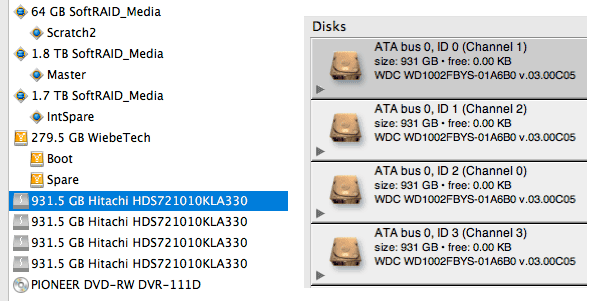 |
Disk display: Disk Utility (left), SoftRAID (right)
|
Single partition
Shown below is Apple's Disk Utility window. Shown selected is one hard drive (a Maxtor 7H500F0 500GB drive). For a single hard drive partition resulting in a single volume, use the tab, giving the volume a name other than “Untitled” as seen below. Stick with unless you know what you’re doing and you really need something else.Clicking will partition the hard drive, write the operating system records ("file system") and mount a new volume icon on the desktop—you're done.
 |
Creating a single partition/volume using all space on a single hard drive
|
Two partitions
In this case, we will create two partitions. As shown, the partition will be 32GB, the fastest part of the drive, and suitable for a scratch disk or other high-performance purpose. The partition contains all the remaining space. More than two partitions is rarely useful, and here our goal is to divide the hard drive into a fast and slow area.1. Select
2. Click on each partition and give it a name. Set the size of to 32GB, will automatically change to the leftover amount (433.76GB).
3. Click . When the process completes, two new volume icons will appear on the desktop.
Repeat this process for other hard drives.
 |
Creating a single partition/volume using all space on a single hard drive
|
订阅:
博文 (Atom)
